 COME
COMECheck the COME App Version Before Updating
Before updating COME, compare the installed app details with the release being offered. A button labelled Check Update can help you look, but a screenshot saying Latest Version does not prove that a particular release is installed on your phone.
Start with the installation you already have
Keep the existing app available while you check. Confirm that you can reach the account normally and retain access to the sign-in method you use. Do not uninstall solely because another page advertises an update.
On many Android phones, the app’s information screen includes its version. The path and displayed fields vary by manufacturer. Note the app name and complete version string, including any suffix, so you can compare like for like.
Read Check Update in context
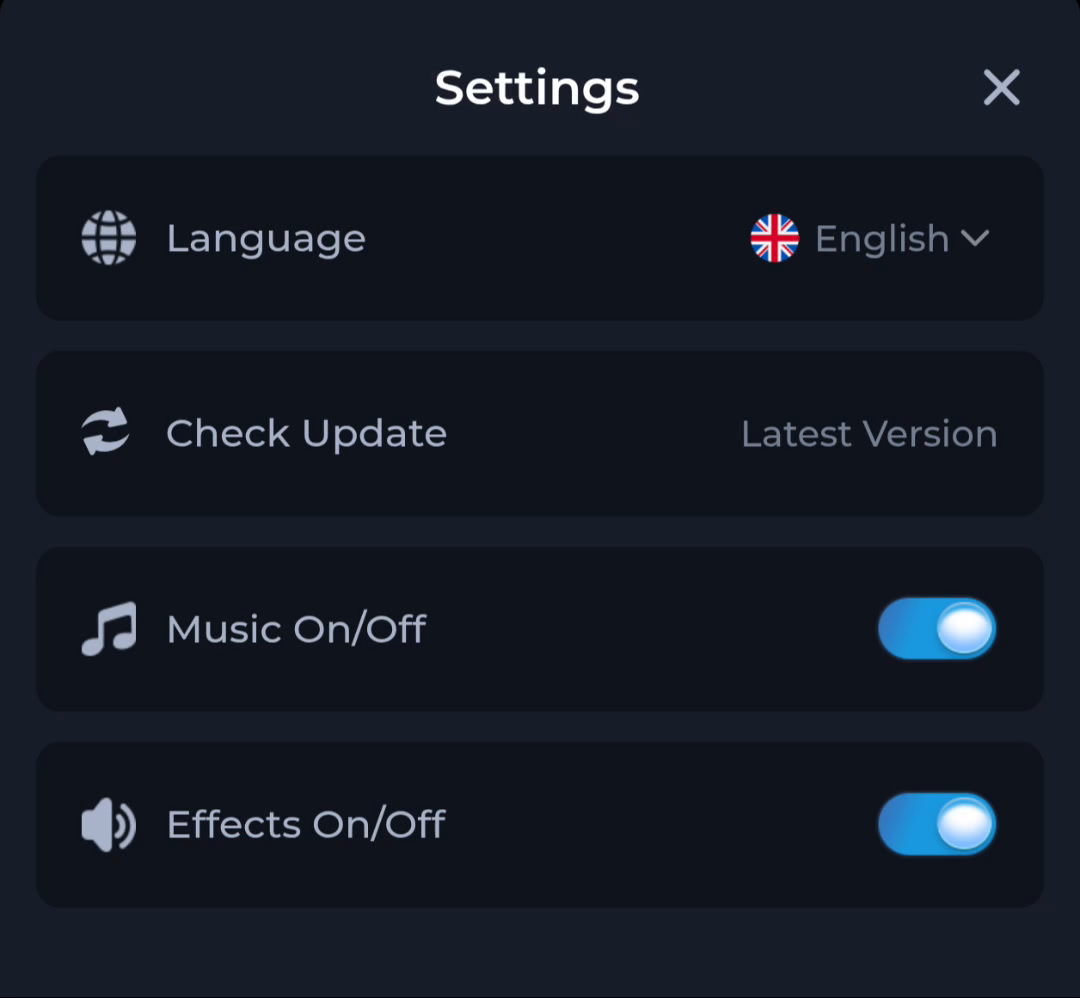
The supplied COME Settings panel shows Language, Check Update, Music and Effects. If your current interface includes Check Update, read the result it presents. The sample image does not show a numerical release identifier.
Compare the offered release
- Record the installed version where your device or app displays it.
- Read the version and developer details on the destination offering the update. The reference information used by this site lists v1.12 and 3.1 MB, checked on 18 September 2026; those are not a guarantee about the file offered now.
- Check whether release notes or installation requirements explain the change. If the page only says Latest Version, seek the actual release details before treating it as newer.
- Confirm that the update source belongs to the product you already use. Matching names and icons are useful visual checks, but do not prove a matching signing identity.
- If you proceed, allow the file transfer to finish and read Android’s installer response. Keep device protection enabled throughout.
When an update is refused
An installation refusal can involve compatibility, package identity, signing differences, storage or a damaged transfer. The exact Android message matters. Record it and check the source details; do not assume that removing the installed app is the right fix.
If the message indicates an unsafe app, stop and review the warning. A scan result is also not a promise that every aspect of a service is safe or suitable.
After an update
Check that the expected app opens and that your normal account access still works. Review any new permission request in relation to the function you want to use. Keep a record of the installed version if you need to explain a later problem.
Identify an installation or launch problem
Preparing another Android phone
For the external entry and the full installation sequence, continue to the download page.