 COME
COMECOME Download Stopped or Will Not Open: Find the Stage
First identify where the COME download process stopped: opening the page, transferring the file, installing it or launching the app. “It will not open” can describe any of these, and each has a different next check.
1. The entry page does not load
Check whether another ordinary website loads on the same connection. If nothing loads, investigate the network first. If only the COME destination fails, note its exact error, the time and the browser you used; the cause may be specific to that service.
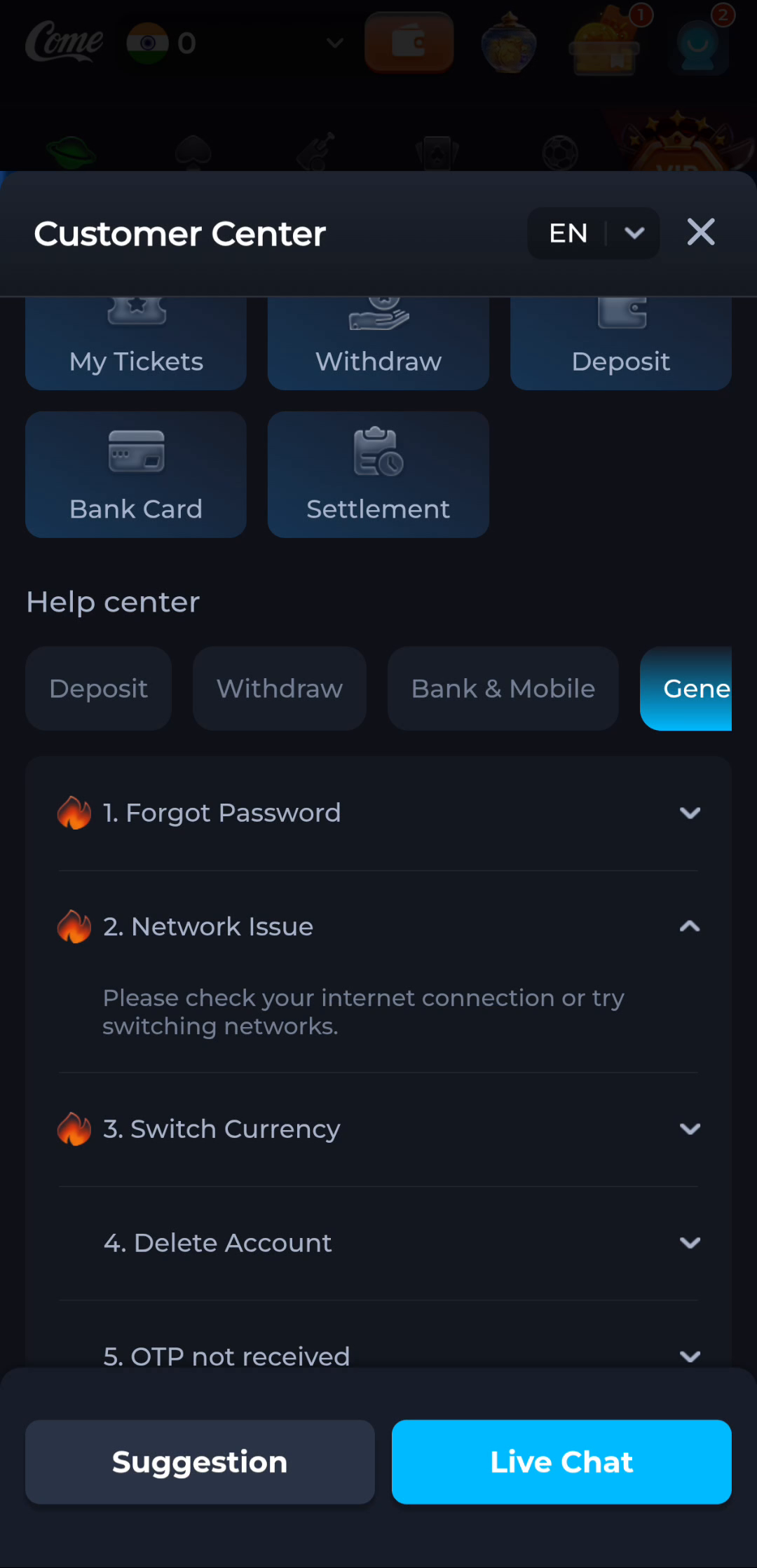
The supplied Network Issue help screen advises checking the internet connection or trying another network. Use an ordinary connection you trust; a network switch is a diagnostic step, not a reason to bypass an access restriction.
2. The APK transfer is paused or interrupted
- Open the browser’s Downloads list and read the status. Distinguish a completed transfer from one that is paused, cancelled or interrupted.
- Check free storage and the connection. A phone can need additional space beyond the size of the downloaded package.
- If the browser offers Resume for a verified source, read the option before using it. Otherwise return to the same verified destination for a fresh attempt.
- Avoid accumulating several uncertain copies. Compare the file names and completion states before opening the intended file.
3. Android will not install the file
Write down the actual message rather than summarising it as a download failure. An incomplete file, unsupported device requirement or conflict with an existing installation needs a different response. A complete-looking file name does not establish file integrity.
Review the source and the published device requirements. Do not rename the file to make it appear to be an APK, disable Play Protect or remove a working installation just to get past a warning.
4. The app installed but will not launch
Check that installation completed, then try opening the app normally. If it closes or displays an error, record the app version, Android version and message. Reopening the download page does not by itself diagnose an app-launch problem.
Keep existing account access available and use the product’s verified help route for a persistent launch issue. The reference help categories are explained in a separate guide.
A useful issue description
- The stage that failed and the exact message.
- The time of the attempt and whether the issue repeats.
- Phone model, Android version and browser or app version where relevant.
- A screenshot with private information hidden. Never include passwords, one-time codes or payment credentials.
Check whether you received an APK
Return to the download instructions once you know which stage needs another attempt.