 COME
COMEMoving COME to Another Android Phone: Before You Install
When setting up COME on another Android phone, prepare account access before replacing the old installation. Installing an APK and recovering the same account are separate tasks. Copying an icon or a file does not guarantee that account information will transfer.
Keep the existing phone available
If the old phone still works, keep the app accessible while checking the new setup. Confirm the sign-in method you actually use and that you can still receive any required verification through it. Do not log out, clear app data or reset the phone as the first preparation step.
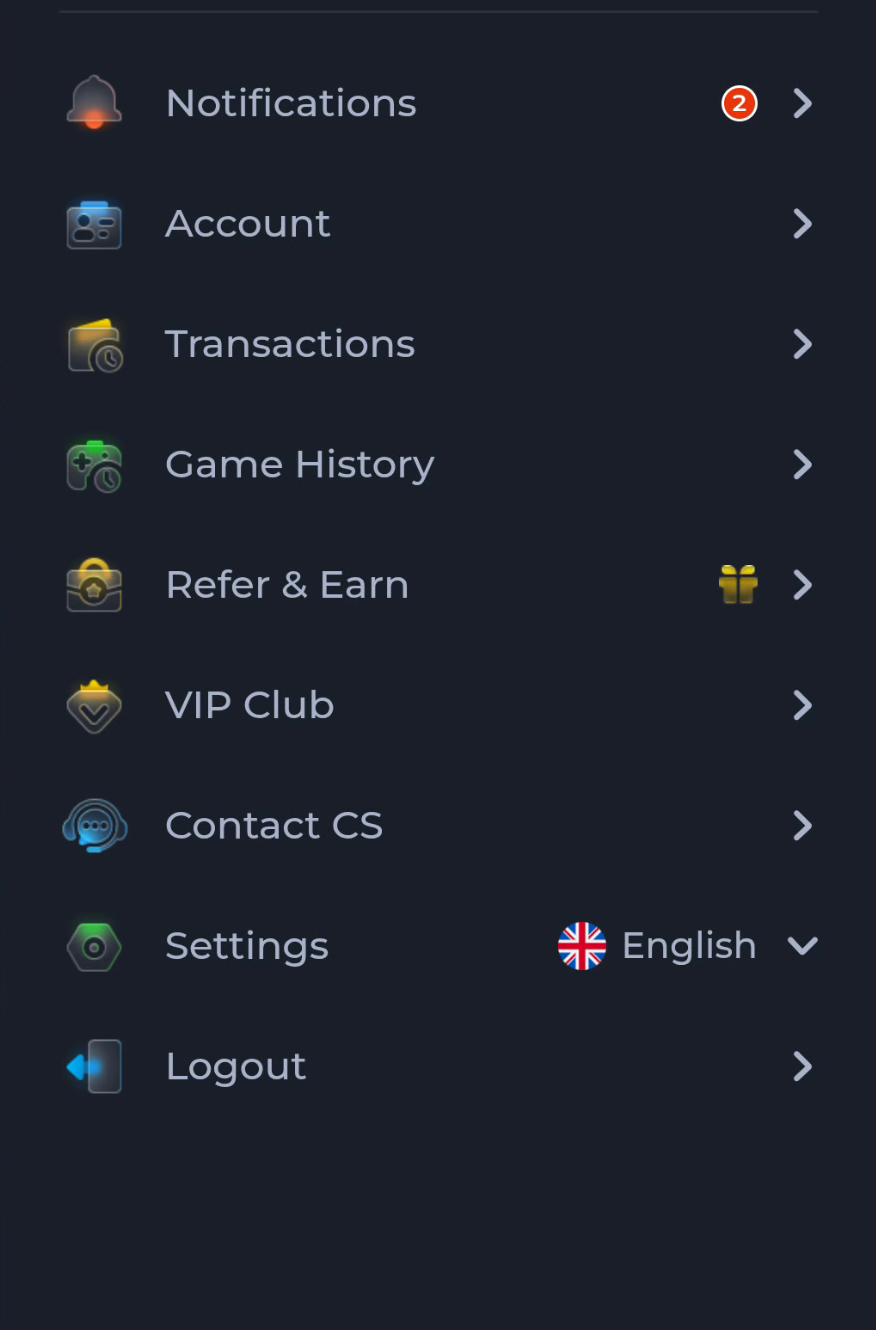
The supplied menu includes Account, Contact CS, Settings and Logout. It is useful for recognising the kinds of controls available, but it does not prove a particular recovery or device-transfer feature exists.
Prepare the new Android phone
- Check the new phone’s Android version, available storage and internet connection. Compare these with requirements shown by the actual download destination.
- Open the verified COME entry and review the Android file details. Do not rely on a forwarded APK whose origin you cannot confirm.
- Follow Android’s installation prompts and keep Play Protect enabled. Read any compatibility or identity warning rather than forcing installation.
- Open the installed app and use your normal sign-in route if it is available. Follow the service’s current device and account rules.
- Confirm access to the expected account before deciding what to do with the old device. Do not assume every setting or local item has synchronised.
If the normal sign-in route is unavailable
Use the verified recovery or help option presented by the service. A new app installation does not bypass an account restriction or establish ownership. Avoid creating additional accounts as a workaround unless the service’s rules explicitly permit the intended use.
Keep passwords and verification codes private. An issue report can explain that access to the original sign-in method is unavailable without including the credential itself.
When the new device opens a browser instead
Check whether you added a website shortcut or installed an Android application. Look at the browser address bar and the phone’s app information. The web-page guide explains the difference and the evidence to look for.
Distinguish a shortcut from an APK installation
Finish only after confirming access
Keep the old setup until you have verified the intended access on the new phone and understand the service’s device policy. If the app opens but the expected account is missing, investigate account access before repeating the download.
Find the appropriate help category
Use the download page for the current entry and the Android installation sequence.